
Tài liệu này hướng dẫn chi tiết từng bước cách tích hợp và điều khiển animation từ file .riv trong ứng dụng Flutter sử dụng Rive Runtime thế hệ mới (Rive Native).
1. Giới Thiệu Về Rive
- Rive là công cụ thiết kế hoạt ảnh vector theo thời gian thực (real-time interactive animation).
- File hoạt ảnh của Rive có định dạng
.riv, kích thước siêu nhẹ và chạy mượt mà trên đa nền tảng (Android, iOS, macOS, Web, Windows). - State Machine trong Rive cho phép bạn điều khiển các trạng thái animation bằng code thông qua các tham số đầu vào (Inputs: Boolean, Number, Trigger).
2. Các Bước Tích Hợp Vào Dự Án
Bước 1: Thêm file .riv vào thư mục assets
Tạo thư mục
assets/ở thư mục gốc của dự án Flutter (nếu chưa có).Sao chép file hoạt ảnh của bạn (ví dụ:
rive.riv) vào thư mụcassets/:my_flutter_app/ ├── assets/ │ └── rive.riv ├── lib/ │ └── main.dart └── pubspec.yamlKhai báo asset trong file
pubspec.yaml:flutter: uses-material-design: true assets: - assets/rive.riv
Bước 2: Thêm thư viện rive
Chạy lệnh sau tại terminal:
flutter pub add rive
Lệnh này sẽ tự động thêm package rive (phiên bản ^0.14.x trở lên) vào dependencies trong pubspec.yaml.
Bước 3: Cấu hình thư viện Native (Rive Native Setup)
IMPORTANT
Từ phiên bản Rive 0.14+, thư viện sử dụng C++ Native Core để tối ưu hóa hiệu năng và tốc độ render. Bạn cần chạy lệnh setup để tải các file binary native cho từng nền tảng:
- Dành cho macOS:
dart run rive_native:setup --platform macos - Dành cho Android:
dart run rive_native:setup --platform android - Dành cho iOS:
dart run rive_native:setup --platform ios
Bước 4: Khởi tạo Rive trong main()
Trong hàm main() của lib/main.dart, bạn phải khởi tạo RiveNative trước khi gọi runApp():
import 'package:flutter/material.dart';
import 'package:rive/rive.dart';

void main() async {
  // Bắt buộc phải có 2 dòng này
  WidgetsFlutterBinding.ensureInitialized();
  await RiveNative.init();

  runApp(const MyApp());
}
3. Cách Sử Dụng Trong Widget
Cách 1: Hiển thị Animation đơn giản (Không cần tương tác)
Sử dụng FileLoader và RiveWidgetBuilder:
class SimpleRiveView extends StatefulWidget {
const SimpleRiveView({super.key});
State<SimpleRiveView> createState() => _SimpleRiveViewState();
}
class _SimpleRiveViewState extends State<SimpleRiveView> {
late final FileLoader _fileLoader;
void initState() {
super.initState();
// Tạo bộ nạp file từ asset
_fileLoader = FileLoader.fromAsset(
'assets/rive.riv',
riveFactory: Factory.rive, // Dùng Rive GPU Renderer
);
}
void dispose() {
_fileLoader.dispose(); // Luôn giải phóng tài nguyên khi widget bị hủy
super.dispose();
}
Widget build(BuildContext context) {
return SizedBox(
width: 300,
height: 300,
child: RiveWidgetBuilder(
fileLoader: _fileLoader,
builder: (context, state) => switch (state) {
RiveLoading() => const Center(child: CircularProgressIndicator()),
RiveFailed() => Center(child: Text('Lỗi: ${state.error}')),
RiveLoaded() => RiveWidget(
controller: state.controller,
fit: Fit.contain,
),
},
),
);
}
}
Cách 2: Điều khiển State Machine bằng code (Inputs: Boolean, Number, Trigger)
Khi file Rive có các trạng thái (ví dụ: mở/nhắm mắt, bật/tắt công tắc, đếm bước...), bạn dùng RiveWidgetController để truy cập các input.
Các loại Input phổ biến:
- Boolean Input (
bool): Đổi giữa 2 trạng tháitrue/false.final boolInput = controller.stateMachine.boolean('tên_input'); boolInput?.value = true; // hoặc false - Number Input (
double): Giá trị dạng số (thanh tiến trình, điểm số...).final numberInput = controller.stateMachine.number('tên_input'); numberInput?.value = 50.0; - Trigger Input: Kích hoạt hành động 1 lần (nhảy lên, tấn công...).
final triggerInput = controller.stateMachine.trigger('tên_input');
triggerInput?.fire();
4. Ví Dụ Mẫu Hoàn Chỉnh (Tương tác nút Open/Close)
Dưới đây là mã nguồn mẫu điều khiển tham số lid của nhân vật (Mở mắt khi lid = false, Nhắm mắt khi lid = true):
import 'package:flutter/material.dart';
import 'package:rive/rive.dart';
void main() async {
WidgetsFlutterBinding.ensureInitialized();
await RiveNative.init();
runApp(const MyApp());
}
class MyApp extends StatelessWidget {
const MyApp({super.key});
Widget build(BuildContext context) {
return MaterialApp(
debugShowCheckedModeBanner: false,
home: const RiveControlPage(),
);
}
}
class RiveControlPage extends StatefulWidget {
const RiveControlPage({super.key});
State<RiveControlPage> createState() => _RiveControlPageState();
}
class _RiveControlPageState extends State<RiveControlPage> {
File? _riveFile;
RiveWidgetController? _controller;
BooleanInput? _lidInput;
bool _isLoading = true;
bool _lidState = false; // Mặc định mở mắt
void initState() {
super.initState();
_loadAnimation();
}
Future<void> _loadAnimation() async {
try {
// 1. Tải file Rive từ asset
final file = await File.asset(
'assets/rive.riv',
riveFactory: Factory.rive,
);
if (file == null) throw Exception('Không tìm thấy file asset');
// 2. Tạo controller và lấy Boolean Input
final controller = RiveWidgetController(file);
// ignore: deprecated_member_use
final lid = controller.stateMachine.boolean('lid');
setState(() {
_riveFile = file;
_controller = controller;
_lidInput = lid;
_lidState = lid?.value ?? false;
_isLoading = false;
});
} catch (e) {
debugPrint('Lỗi: $e');
}
}
void _updateLid(bool newValue) {
if (_lidInput != null) {
_lidInput!.value = newValue;
setState(() {
_lidState = newValue;
});
}
}
void dispose() {
_lidInput?.dispose();
_controller?.dispose();
_riveFile?.dispose();
super.dispose();
}
Widget build(BuildContext context) {
final bool canOpen = _lidState; // Nếu đang nhắm (true) thì cho phép mở
final bool canClose = !_lidState; // Nếu đang mở (false) thì cho phép đóng
return Scaffold(
appBar: AppBar(title: const Text('Rive Animation Demo')),
body: Center(
child: Column(
mainAxisAlignment: MainAxisAlignment.center,
children: [
// Khung hiển thị animation
SizedBox(
width: 300,
height: 300,
child: _isLoading
? const CircularProgressIndicator()
: RiveWidget(
controller: _controller!,
fit: Fit.contain,
),
),
const SizedBox(height: 20),
// Trạng thái hiện tại
Text(
_lidState ? 'Mắt đang: Nhắm (true)' : 'Mắt đang: Mở (false)',
style: const TextStyle(fontSize: 16, fontWeight: FontWeight.bold),
),
const SizedBox(height: 16),
// Các nút điều khiển
Row(
mainAxisAlignment: MainAxisAlignment.center,
children: [
FilledButton(
onPressed: canOpen ? () => _updateLid(false) : null,
style: FilledButton.styleFrom(
backgroundColor: canOpen ? Colors.purple : Colors.grey,
),
child: const Text('Open (false)'),
),
const SizedBox(width: 16),
FilledButton(
onPressed: canClose ? () => _updateLid(true) : null,
style: FilledButton.styleFrom(
backgroundColor: canClose ? Colors.deepOrange : Colors.grey,
),
child: const Text('Close (true)'),
),
],
),
],
),
),
);
}
}
Hình Ảnh Thực Tế Trên Máy Ảo Android (Emulator)
Dưới đây là hình ảnh thực tế ứng dụng khi chạy trên máy ảo Android:
Trạng thái: Mở mắt (lid = false) | Trạng thái: Nhắm mắt (lid = true) |
|---|---|
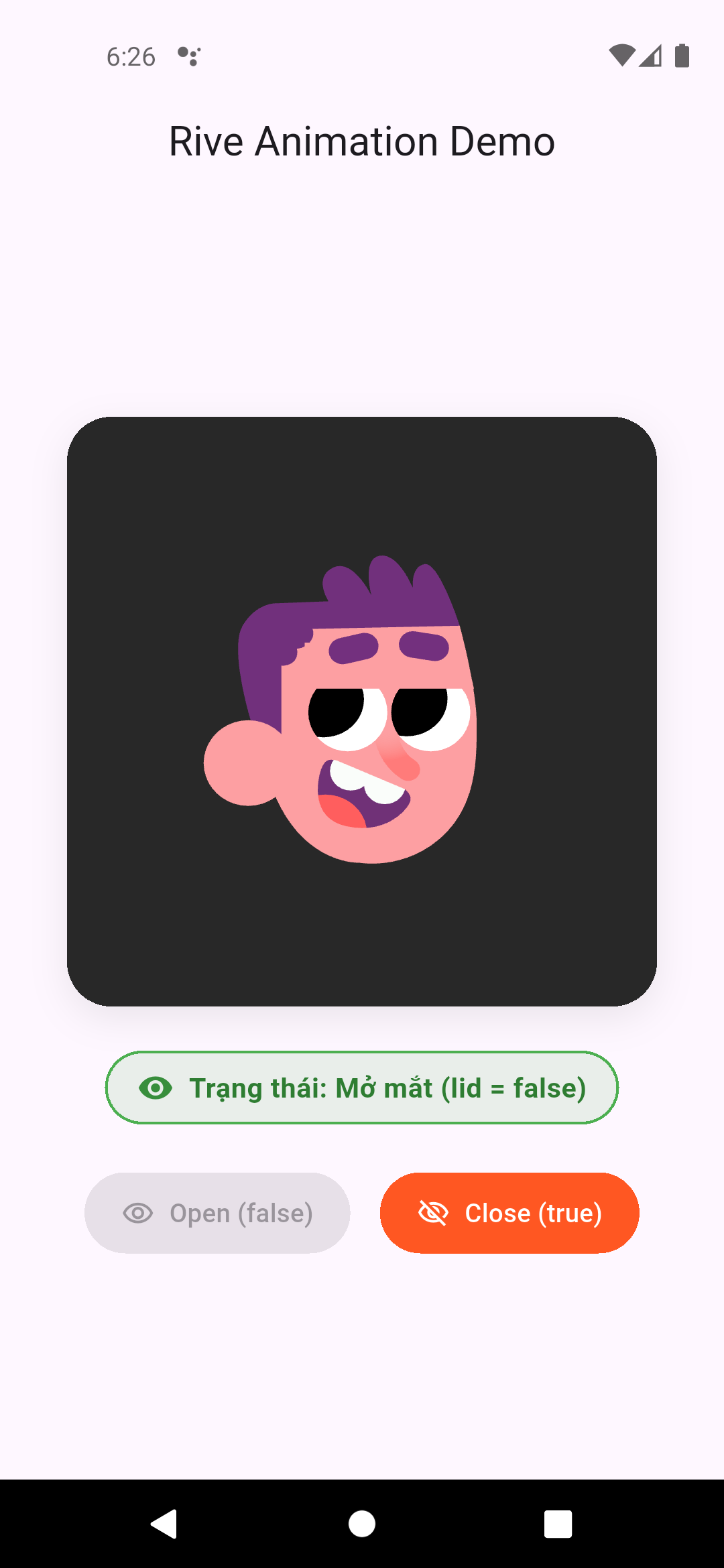 | 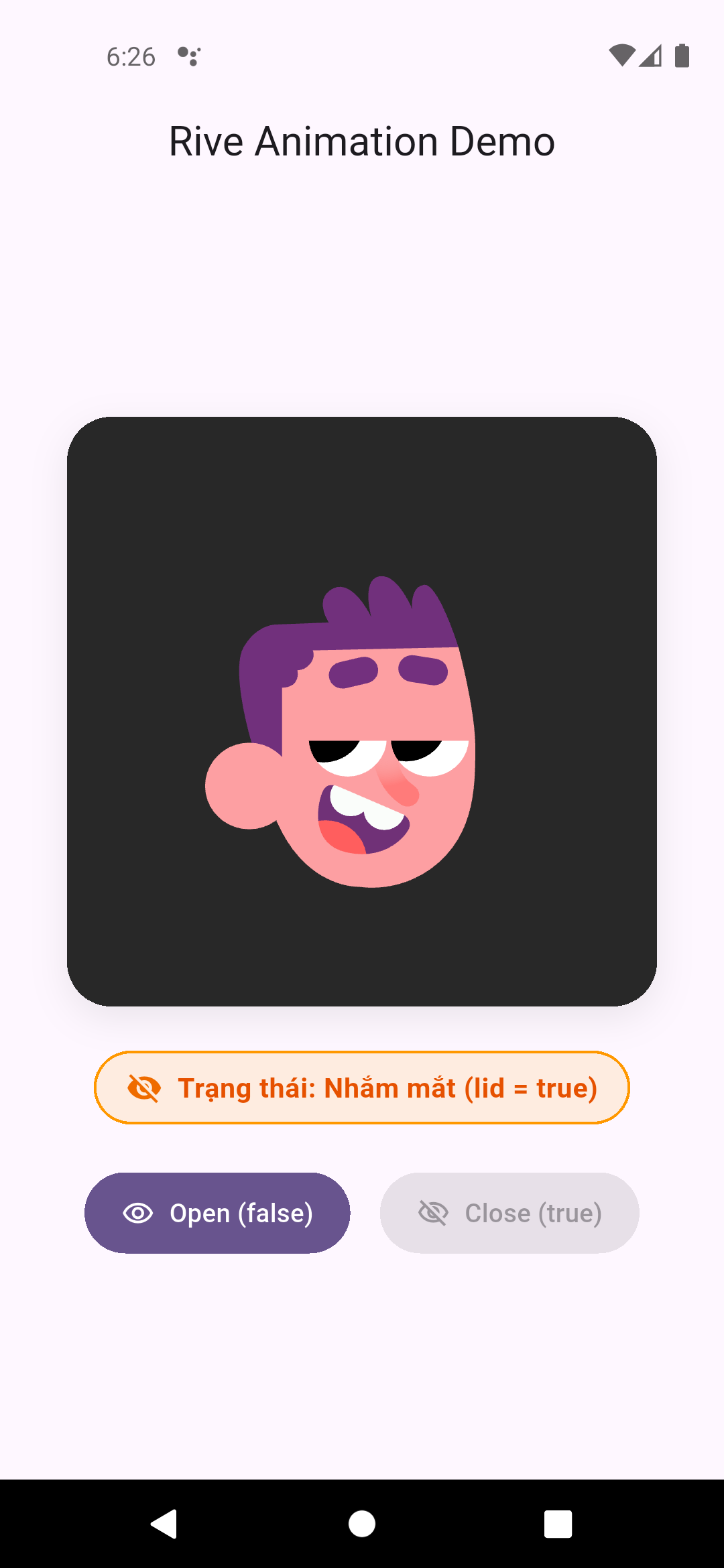 |
| Mắt mở: Nút Close (true) được kích hoạt có màu nổi bật | Mắt nhắm: Nút Open (false) được kích hoạt có màu nổi bật |
5. Các Lỗi Phổ Biến & Cách Khắc Phục
| Lỗi | Nguyên nhân | Cách khắc phục |
|---|---|---|
Failed to open dynamic library 'librive_native.dylib' hoặc .so | Chưa tải native binary của Rive | Chạy lệnh dart run rive_native:setup --platform <platform> |
Cannot load asset: assets/rive.riv | Quên đăng ký trong pubspec.yaml hoặc gõ sai đường dẫn | Kiểm tra phần assets: trong pubspec.yaml và thụt dòng đúng chuẩn YAML |
| Animation không chạy hoặc đứng yên | File Rive chứa State Machine nhưng chưa gán input hoặc chưa chạy đúng artboard | Kiểm tra tên State Machine và Input trên Rive Editor |
| Crash khi khởi động app | Quên gọi RiveNative.init() | Thêm WidgetsFlutterBinding.ensureInitialized(); và await RiveNative.init(); trong main() |
6. Lời Khuyên Cho Dự Án Thực Tế
- Luôn
dispose()đúng cách: Hãy disposeInput,RiveWidgetControllervàFiletrongdispose()củaStatefulWidgetđể tránh rò rỉ bộ nhớ native (memory leak). - Kiểm tra Input bằng Rive Editor: Mở file
.rivtrên rive.app để xem chính xác tên Artboard, State Machine và danh sách Input. - Renderer: Mặc định
Factory.rivecho hiệu năng cao nhất vì sử dụng GPU pipeline của Rive. Nếu gặp xung đột trên máy cũ, bạn có thể chuyển sangFactory.flutter.